Native Video Ad
Outstream ads are supported starting from NAMSDK version 6.2.0.
Starting from NAMSDK version 7.3.0, you can choose the UI for Outstream ads.
Native Integration Guide
Outstream is a Native Normal type ad. For the Native Normal integration guide, please refer to the link.
Outstream Player UI
Outstream ads display video within a MediaView.
To configure the control UI for Outstream, refer to the GFPVideoOptions viewType guide. If you want to build a custom control UI per publisher, refer to the useCustomControlView guide.
Outstream API
enableMediaBackgroundBlur
Sets whether to apply a blur effect to the margin area of the native ad media view. (Default: NO) The blur is applied only when a thumbnail image is available. If no thumbnail exists, a black background is displayed instead.
- Swift
- Objective-C
let nativeOptions = GFPAdNativeOptions()

let renderingSetting = GFPNativeAdRenderingSetting()
renderingSetting.enableMediaBackgroundBlur = false
renderingSetting.enableMediaBackgroundBlur = true

nativeOptions.renderingSetting = renderingSetting
GFPAdNativeOptions *nativeOptions = [[GFPAdNativeOptions alloc] init];

GFPNativeAdRenderingSetting *renderingSetting = [[GFPNativeAdRenderingSetting alloc] init];
renderingSetting.enableMediaBackgroundBlur = NO;
renderingSetting.enableMediaBackgroundBlur = YES;

nativeOptions.renderingSetting = renderingSetting;
GFPVideoOptions
Use GFPVideoOptions to configure the playback policy, whether to use a custom control view, and the maximum video quality for Outstream ads.
GFPVideoOptions is passed by setting it on the adLoader's nativeOptions.
- Swift
- Objective-C
let nativeOptions = GFPAdNativeOptions()

let videoOption = GFPVideoOptions(playPolicy: .autoPlay, useCustomControlView: false)

nativeOptions.videoOptions = videoOption
GFPAdNativeOptions *nativeOptions = [[GFPAdNativeOptions alloc] init];

GFPVideoOptions *videoOption = [[GFPVideoOptions alloc] initWithPlayPolicy:GFPVideoPlayPolicyAutoPlay useCustomControlView:NO];

nativeOptions.videoOptions = videoOption;
GFPVideoPlayPolicy
Sets the playback policy for the ad video. (Default: Auto)
- Auto: The SDK controls video playback directly. The video plays to the end when the network is WiFi or Cellular.
- Auto Only WiFi: The SDK controls video playback directly. The video plays to the end only when the network is WiFi. On Cellular, playback stops after n seconds.
- Manual: The service controls video playback. When the ad is displayed, the video appears in a paused state, and the service determines when to begin playback.
- Swift
- Objective-C
let videoOption = GFPVideoOptions(playPolicy: .autoPlay, useCustomControlView: false)

let videoOption = GFPVideoOptions(playPolicy: .autoPlayOnlyWiFi, useCustomControlView: false)

let videoOption = GFPVideoOptions(playPolicy: .manual, useCustomControlView: false)
GFPVideoOptions *videoOption = [[GFPVideoOptions alloc] initWithPlayPolicy:GFPVideoPlayPolicyAutoPlay useCustomControlView:NO];

GFPVideoOptions *videoOption = [[GFPVideoOptions alloc] initWithPlayPolicy:GFPVideoPlayPolicyAutoPlayOnlyWiFi useCustomControlView:NO];

GFPVideoOptions *videoOption = [[GFPVideoOptions alloc] initWithPlayPolicy:GFPVideoPlayPolicyManual useCustomControlView:NO];
useCustomControlView
Sets whether to use a custom control view for the ad video. (Default: NO) When set to YES, the player's control elements are hidden. When set to NO, the SDK renders the control elements internally.
- Swift
- Objective-C
let videoOption = GFPVideoOptions(playPolicy: .autoPlay, useCustomControlView: false)

let videoOption = GFPVideoOptions(playPolicy: .autoPlay, useCustomControlView: true)
GFPVideoOptions *videoOption = [[GFPVideoOptions alloc] initWithPlayPolicy:GFPVideoPlayPolicyAutoPlay useCustomControlView:NO];

GFPVideoOptions *videoOption = [[GFPVideoOptions alloc] initWithPlayPolicy:GFPVideoPlayPolicyAutoPlay useCustomControlView:YES];
shouldHideThumbnailAfterAd (since 8.22.1)
Sets whether to hide the thumbnail after the ad video completes. (Default: NO)
When set to YES, the thumbnail is hidden after the ad completes. Set this value before requesting the ad.
- Swift
- Objective-C
let videoOption = GFPVideoOptions(playPolicy: .autoPlay, useCustomControlView: true)
videoOption.shouldHideThumbnailAfterAd = true
GFPVideoOptions *videoOption = [[GFPVideoOptions alloc] initWithPlayPolicy:GFPVideoPlayPolicyAutoPlay
                                                     useCustomControlView:YES];
videoOption.shouldHideThumbnailAfterAd = YES;
maxBitrateKbps
Sets the maximum bitrate for the ad video. (Default: 800, unit: kbps)
- Swift
- Objective-C
videoOption.maxBitrateKbps = 800
videoOption.maxBitrateKbps = 800;
viewType (since 7.3.0)
| viewType | description | |
|---|---|---|
| Default | Tapping the video screen shows control buttons. | 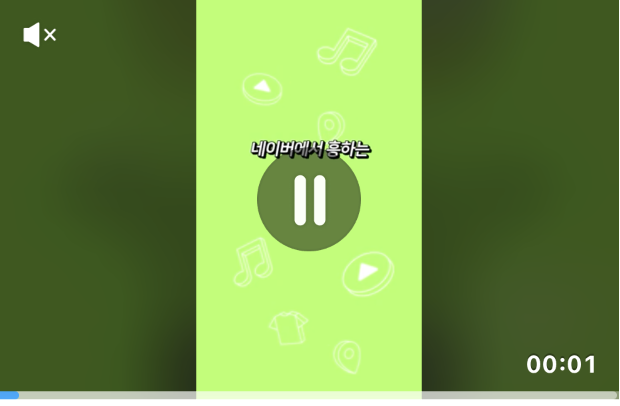 |
| Landing | Tapping the video screen navigates to the advertiser's site. |  |
- Swift
- Objective-C
let videoOptions = GFPVideoOptions(playPolicy: .autoPlay, viewType: .default)

let videoOptions = GFPVideoOptions(playPolicy: .autoPlay, viewType: .landing)
GFPVideoOptions *videoOptions = [[GFPVideoOptions alloc] initWithPlayPolicy: GFPVideoPlayPolicyAutoPlay viewType: GFPVideoViewTypeDefault];

GFPVideoOptions *videoOptions = [[GFPVideoOptions alloc] initWithPlayPolicy: GFPVideoPlayPolicyAutoPlay viewType: GFPVideoViewTypeLanding];
GFPMediaData
Native Normal type ads are delivered via adLoader:didReceiveNativeAd:. For more details on GFPAdLoaderDelegate, refer to the link.
You can retrieve information rendered in the MediaView through nativeAd.mediaData.
With native ad Lazy Loading, you can use nativeAd.mediaData at the first ad load callback to size the media area. It exposes preferredMediaWidth, preferredMediaHeight, and preferredHeightWithFixedWidth(_:) — treat them as valid only when preferredMediaWidth and preferredMediaHeight are greater than 0.
The outstream video resource only loads once the ad view is attached to the view hierarchy, so access mediaData.videoController after the main media has loaded, not at the first ad load callback. With Lazy Loading, the SDK sends the valid-impression (sc/12) report after the main media loads successfully.
- Swift
- Objective-C
let mediaData = nativeAd.mediaData
GFPMediaData *mediaData = nativeAd.mediaData;
mediaType
You can identify the ad type through mediaType.
- GFPMediaTypeImage: Image type
- GFPMediaTypeVideo: Video type
- GFPMediaTypeRichMedia: Rich media type such as special DA at the bottom of search results
- GFPMediaTypeUnknown: Ads served via C2S through Google, Meta, InMobi, etc.
- Swift
- Objective-C
let mediaType = nativeAd.mediaData.mediaType
GFPMediaType mediaType = nativeAd.mediaData.mediaType;
aspectRatio
Provides the aspect ratio of the media. Returns -1 if the data is not available.
- Swift
- Objective-C
let aspectRatio = nativeAd.mediaData.aspectRatio
CGFloat aspectRatio = nativeAd.mediaData.aspectRatio;
videoController
Returned only when mediaType is Video. Returns nil if the data is not available.
- Swift
- Objective-C
let videoController = nativeAd.mediaData.videoController
GFPVideoController *videoController = nativeAd.mediaData.videoController;
GFPVideoController
Through videoController, you can obtain information such as progressInfo and isMuted, and control video playback including mute/play/pause/stop.
progressInfo
Provides the duration, currentTime, and bufferedTime of the ad video.
- Swift
- Objective-C
let videoController = nativeAd.mediaData.videoController

let progressInfo = videoController.progressInfo

let duration = progressInfo.duration
let currentTime = progressInfo.currentTime
let bufferedTime = progressInfo.bufferedTime
GFPVideoController *videoController = nativeAd.mediaData.videoController;

GFPVideoProgressInfo *progressInfo = videoController.progressInfo;

NSTimeInterval duration = progressInfo.duration;
NSTimeInterval currentTime = progressInfo.currentTime;
NSTimeInterval bufferedTime = progressInfo.bufferedTime;
isPlaying
Indicates whether the ad video is currently playing.
- Swift
- Objective-C
let videoController = nativeAd.mediaData.videoController

let isPlaying = videoController.isPlaying
GFPVideoController *videoController = nativeAd.mediaData.videoController;

BOOL isPlaying = videoController.isPlaying;
avPlayer (since 8.24.0)
The AVPlayer object used to play the ad video. Returns nil for ads that are not AVPlayer-based.
Use it for observation purposes only (e.g., registering a time observer). For ad logging to work correctly, playback control (play/pause/mute) must be done through the GFPVideoController APIs. Controlling the AVPlayer directly may cause ad event tracking to malfunction.
- Swift
- Objective-C
let videoController = nativeAd.mediaData.videoController

if let avPlayer = videoController.avPlayer {
    // Use only for observing playback state
}
GFPVideoController *videoController = nativeAd.mediaData.videoController;

AVPlayer *avPlayer = videoController.avPlayer;
enableControl
Indicates whether control of the ad video is available. enableControl is related to GFPVideoPlayPolicy.
- When the playPolicy of videoOptions is Manual: enableControl returns YES.
- When the playPolicy of videoOptions is not Manual: enableControl returns NO.
- Swift
- Objective-C
let videoController = nativeAd.mediaData.videoController

let enableControl = videoController.enableControl
GFPVideoController *videoController = nativeAd.mediaData.videoController;

BOOL enableControl = videoController.enableControl;
preferredForwardBufferDuration
Sets the preferredForwardBufferDuration for the ad video.
- Swift
- Objective-C
let videoController = nativeAd.mediaData.videoController
videoController.preferredForwardBufferDuration = 0
GFPVideoController *videoController = nativeAd.mediaData.videoController;
videoController.preferredForwardBufferDuration = 0;
mute
Sets the mute state of the ad video. The mute state can be queried via isMuted.
- Swift
- Objective-C
let videoController = nativeAd.mediaData.videoController

videoController.mute = true
videoController.mute = false

let isMute = videoController.isMuted
GFPVideoController *videoController = nativeAd.mediaData.videoController;

[videoController setMute: YES];
[videoController setMute: NO];

BOOL isMute = videoController.isMuted;
play
Plays the ad video. Only works when enableControl is YES.
- Swift
- Objective-C
let videoController = nativeAd.mediaData.videoController
videoController.play()
GFPVideoController *videoController = nativeAd.mediaData.videoController;
[videoController play];
pause
Pauses the ad video. Only works when enableControl is YES.
- Swift
- Objective-C
let videoController = nativeAd.mediaData.videoController
videoController.pause()
GFPVideoController *videoController = nativeAd.mediaData.videoController;
[videoController pause];
stop
Stops the ad video and resets it to the beginning. Only works when enableControl is YES.
- Swift
- Objective-C
let videoController = nativeAd.mediaData.videoController
videoController.stop()
GFPVideoController *videoController = nativeAd.mediaData.videoController;
[videoController stop];
seek: (since 8.21.0)
Moves the ad video to a specific playback position. progress is passed as a value between 0.0 (start) and 1.0 (end). Only works when enableControl is YES.
- Swift
- Objective-C
let videoController = nativeAd.mediaData.videoController
videoController.seek(0.5) // Move to the 50% point of the video
GFPVideoController *videoController = nativeAd.mediaData.videoController;
[videoController seek:0.5f]; // Move to the 50% point of the video
GFPVideoEventDelegate
Can be set via the videoController's delegate to receive events for the ad video.
- Swift
- Objective-C
let videoController = nativeAd.mediaData.videoController
videoController.delegate = self
GFPVideoController *videoController = nativeAd.mediaData.videoController;
videoController.delegate = self;
adPlayerDidPlay:
Called when the ad video starts playing.
- Swift
- Objective-C
func adPlayerDidPlay(_ videoController: GFPVideoController) {

}
- (void)adPlayerDidPlay:(GFPVideoController *)videoController {

}
adPlayerDidPause:
Called when the ad video is paused.
- Swift
- Objective-C
func adPlayerDidPause(_ videoController: GFPVideoController) {

}
- (void)adPlayerDidPause:(GFPVideoController *)videoController {

}
adPlayerDidComplete:
Called when the ad video finishes playing.
- Swift
- Objective-C
func adPlayerDidComplete(_ videoController: GFPVideoController) {

}
- (void)adPlayerDidComplete:(GFPVideoController *)videoController {

}
adPlayerDidChangeMuteState:
Called when the mute state of the ad video player changes.
- Swift
- Objective-C
func adPlayerDidChangeMuteState(_ videoController: GFPVideoController) {

}
- (void)adPlayerDidChangeMuteState:(GFPVideoController *)videoController {

}
adPlayer:didChangeCurrentTime:
Called when the current playback progress of the ad video changes.
- Swift
- Objective-C
func adPlayer(_ videoController: GFPVideoController, didChangeCurrentTime currentTime: TimeInterval) {

}
- (void)adPlayer:(GFPVideoController *)videoController didChangeCurrentTime:(NSTimeInterval)currentTime {

}
adPlayer:didChangeBufferedTime:
Called when the buffered progress of the ad video changes.
- Swift
- Objective-C
func adPlayer(_ videoController: GFPVideoController, didChangeBufferedTime bufferedTime: TimeInterval) {

}
- (void)adPlayer:(GFPVideoController *)videoController didChangeBufferedTime:(NSTimeInterval)bufferedTime {

}
adPlayer:didTappedControlButton:
(Optional) Called when a control button in the native ad video is tapped. This is called when using the default controlView provided by the SDK, and is not called when using a customControlView.
- Swift
- Objective-C
func adPlayer(_ videoController: GFPVideoController, didTappedControlButton buttonType: GFPControlButtonType) {

}
- (void)adPlayer:(GFPVideoController *)videoController didTappedControlButton:(GFPControlButtonType)buttonType {

}