Native Template Ad
Starting from NAM SDK version 8.7.0, you can implement native ads through the Native Simple Ad format without complex configurations or additional work. This guide explains the Native Template option, which is a method for loading and displaying native ads in the Native Simple Ad format.
Native Templates are designed to allow faster implementation and easier customization of native ads. Using Native Templates, you can implement even your first native ad in minutes and quickly customize the design and style with minimal code.
To effectively apply this guide, you should be familiar with implementing native ads.
Before You Start
Refer to the Native Simple Ads guide to learn how to load and display Native Simple Ads.
Add CocoaPods Dependency
Add the 'NAMSDK/AdRenderer' module along with the main NAMSDK pod.
If you are already integrating 'NAMSDK/MediationNDARich', the AdRenderer module will be included automatically.
source 'https://oss.navercorp.com/da-ssp-app-sdk/gfp-sdk-ios-podspec.git' // NAMSDK pods
source 'https://oss.navercorp.com/CocoaPods/Specs.git' // 네이버 공통 pods
source 'https://github.com/CocoaPods/Specs.git'

target 'MyApplication' do
    pod 'NAMSDK'                        # SDK Core

    pod 'NAMSDK/AdRenderer'             # Default template module
end
Template Option Settings
useNativeTemplate
Template-related options are provided through GFPNativeTemplateOptions. useNativeTemplate is the API that configures whether to apply the template.
- Swift
- Objective-C
let nativeSimpleOption = GFPAdNativeSimpleOptions()

let templateOptions = GFPNativeTemplateOptions(useNativeTemplate: true, nativeOptions: nil)
nativeSimpleOption.templateOptions = templateOptions
GFPNativeTemplateOptions *templateOption = [[GFPNativeTemplateOptions alloc] initWithUseNativeTemplate:true nativeOptions:nil];

GFPAdNativeSimpleOptions *nativeSimpleOptions =  [[GFPAdNativeSimpleOptions alloc] init];
nativeSimpleOptions.templateOptions = templateOption;
Ad Rendering Settings
When using a template, if you want to change the rendering settings, you must configure both the native and native simple settings. (If not configured, the default values are used for rendering.)
Setting adInterfaceStyle
The sample code below guides you on how to set adInterfaceStyle.
- Swift
- Objective-C
let nativeSimpleOption = GFPAdNativeSimpleOptions()

let simpleRenderingSetting = GFPNativeSimpleAdRenderingSetting()
simpleRenderingSetting.adInterfaceStyle = .system //set your style

let options = GFPAdNativeOptions()
let renderingSetting = GFPNativeAdRenderingSetting()
renderingSetting.adInterfaceStyle = .system //set your style
options.renderingSetting = renderingSetting

let templateOptions = GFPNativeTemplateOptions(useNativeTemplate: true, nativeOptions: options)

nativeSimpleOption.templateOptions = templateOptions
GFPAdNativeSimpleOptions *nativeSimpleOptions =  [[GFPAdNativeSimpleOptions alloc] init];

GFPNativeSimpleAdRenderingSetting *simpleRenderingSetting = [[GFPNativeSimpleAdRenderingSetting alloc] init];
simpleRenderingSetting.adInterfaceStyle = GFPAdInterfaceStyleSystem; //set your style

GFPAdNativeOptions *options = [[GFPAdNativeOptions alloc] init];
GFPNativeAdRenderingSetting *renderingSetting = [[GFPNativeAdRenderingSetting alloc] init];
renderingSetting.adInterfaceStyle = GFPAdInterfaceStyleSystem; //set your style
options.renderingSetting = renderingSetting;

GFPNativeTemplateOptions *templateOption = [[GFPNativeTemplateOptions alloc] initWithUseNativeTemplate:true nativeOptions:nil];

nativeSimpleOptions.templateOptions = templateOption;
Others
Other settings can be changed via GFPNativeAdRenderingSetting and GFPNativeSimpleAdRenderingSetting. Please refer to the Native / Native Simple guides.
Default Native Template
When applying GFPNativeTemplateOptions with default values as shown in the example above, the native ad will be rendered through the default template built into the SDK as shown in the image below.

Custom Native Template
If you want to design the native ad layout from scratch while using Native Templates, follow the example below.
1. Define the Native Template View
Customize the view for each ad asset (title, body, etc.).
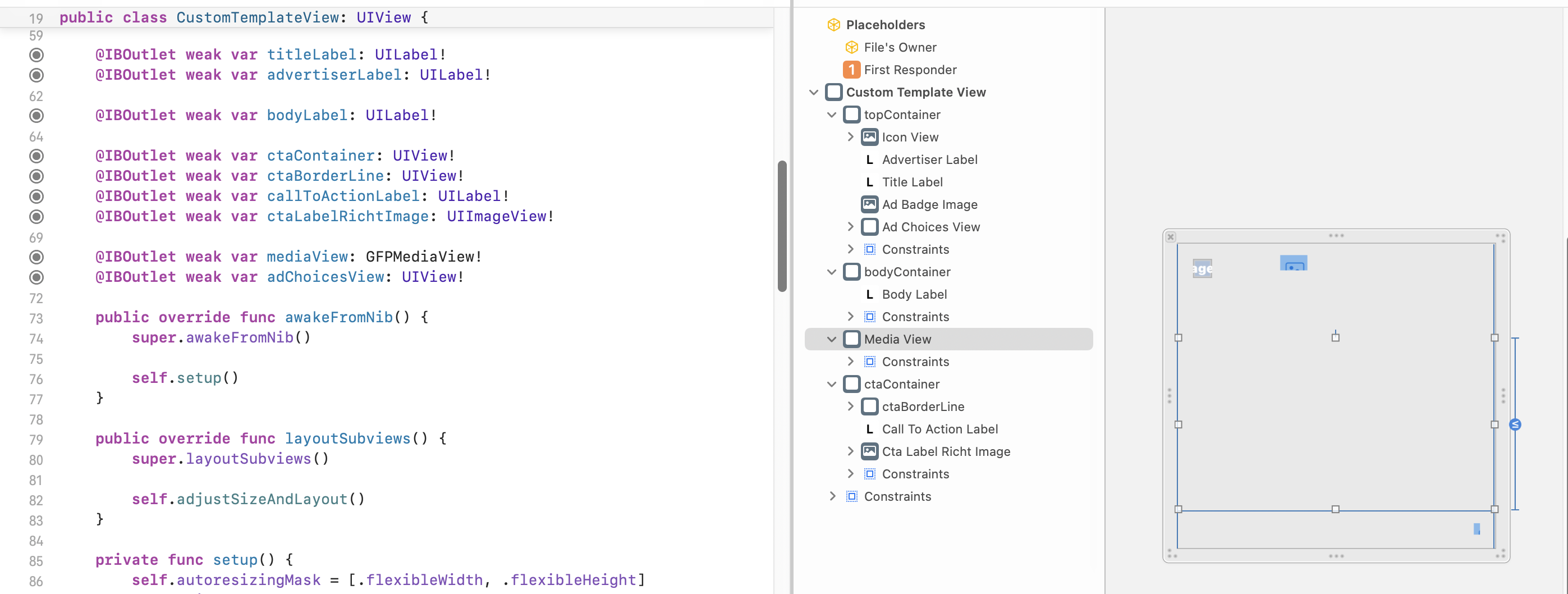
For the video view control UI clicks from certain APs such as DFP, the MediaView must be placed under the custom template view when constructing it.
1. Conform to GFPNativeTemplateViewProtocol
The custom template view must conform to GFPNativeTemplateViewProtocol as shown in the example below.
- Swift
extension CustomTemplateView: GFPNativeTemplateViewProtocol {
    public static func createView() -> UIView? {
        let view = Bundle.main.loadNibNamed("CustomTemplateView", owner: nil)?.first
        return view as? UIView
    }
}
2. Assign Asset Views
Assign according to the assets defined in the custom template view. Only assign the assets that exist in your custom template view; omit any that are not present.
- Swift
extension CustomTemplateView: GFPNativeTemplateViewProtocol {
    public func titleAssetView() -> UILabel? {
        /* set your titleLabel */
    }

    public func bodyAssetView() -> UILabel? {
        /* set your bodyLabel */
    }

    public func advertiseAssetView() -> UILabel? {
        /* set your advertiserLabel */
    }

    public func ctaAssetView() -> UILabel? {
        /* set your callToActionLabel */
    }

    public func adBadgeAssetView() -> UILabel? {
        /* set your adBadgeLabel */
    }

    public func noticeAssetView() -> UILabel? {
        /* set your noticeLabel */
    }

    public func iconContainerView() -> UIImageView? {
        /* set your mediaView */
    }

    public func mediaContainerView() -> GFPMediaView? {
        /* set your mediaView */
    }

    public func adChoicesContainerView() -> UIView? {
        /* set your adChoicesContainerView */
    }
}
3. Map Data via bind
Override the bind method of the custom template view to bind ad assets to each view.
- Swift
extension CustomTemplateView: GFPNativeTemplateViewProtocol {
    public func bind(with asset: (any GFPNativeAssetProtocol)?) {
        guard let asset = asset else { self.asset = nil; return }

        self.asset = asset

        self.titleLabel.text = asset.title
        self.advertiserLabel.text = asset.advertiser
        self.bodyLabel.text = asset.body
        self.callToActionLabel.text = asset.callToAction
        ...
    }
}
- mediaView, iconView, adChoicesView are managed internally by the SDK without separate mapping — just assign the assets.
4. Provide Estimated Height
Provide the height of the custom template view. This height is delivered via GFPNativeSimpleAdDelegate's nativeSimpleAd:didChangeMediaViewSizeWith:.
- Swift
extension CustomTemplateView: GFPNativeTemplateViewProtocol {
    public func estimateHeight() -> CGFloat {
        return /* set your view's height */
    }
}
5. (Optional) Handle Interface Style Changes
- Swift
extension CustomTemplateView: GFPNativeTemplateViewProtocol {
    public func changeStyle(with isDarkMode: Bool) {
        self.backgroundColor = isDarkMode ? /* set your darkMode's bgColor */ : /* set your lightMode's bgColor */
    }
}
6. (Optional) Conform to GFPUserInterestDelegate
Conform to GFPUserInterestDelegate in the custom view. The method ad:didChangeUserInterest: is called when the user's level of interest in the ad changes.
Call timing:
- Interest Start: When more than 50% of the ad area is visible for 1 second, the userInterest value is passed as true.
- Interest End: When the ad area is no longer visible, the userInterest value is passed as false.
Example use case: You can dynamically change the color of the Call to Action button at the moment the user shows interest, improving ad visibility.
- Swift
extension CustomTemplateView : GFPUserInterestDelegate {
    public func ad(_ ad: NSObject!, didChangeUserInterest userInterest: Bool) {
        if userInterest {
            UIView.animate(withDuration: 0.4) {
                if let highlightBgColor = self.asset?.callToActionOption?.highlightBgColor {
                    self.ctaLabel.backgroundColor = highlightBgColor
                } else {
                    self.ctaLabel.backgroundColor = GFPLabelOption.defaultHighlightBgColor
                }
            }
        } else {
            self.ctaLabel.backgroundColor = UIColor.gray
        }
    }
}
3. Register the Native Template
To use the custom native template view, register it in GFPNativeTemplateOptions.
Register as follows:
- Use the
addTemplateWith:templateView:method - Set
kGFPTemplateVisualKey.defaultVisualKeyas the visual key - Pass the custom native template view object created earlier
- Swift
let templateOptions = GFPNativeTemplateOptions(useNativeTemplate: true, nativeOptions: /* set your nativeOptions */)

let customTemplateView = CustomTemplateView.createView()

if let customTemplateView = customTemplateView as? UIView & GFPNativeTemplateViewProtocol {
    templateOptions.addTemplate(with: kGFPTemplateVisualKey.defaultVisualKey, templateView: customTemplateView)
}
4. Ad Request and Rendering
After completing the above steps, the subsequent ad request, rendering, and resource release handling are identical to regular native simple ads.
However, when using a native template, since native ads are processed through the native simple ad format, the following setup must not be included when building GFPAdLoader.
If native ad option configuration is needed, it must be passed through templateOptions.
- Swift
let adLoader = GFPAdLoader(unitID: "testUnitId", rootViewController: viewController, adParam: adParam)

// Must not be included when using native templates.
let nativeOptions = GFPAdNativeOptions()
adLoader.setNativeDelegate(self, nativeOptions: nativeOptions)

let templateOptions = GFPNativeTemplateOptions(useNativeTemplate: true, nativeOptions: nativeOptions)

let customTemplateView = CustomTemplateView.createView()

if let customTemplateView = customTemplateView as? UIView & GFPNativeTemplateViewProtocol {
    templateOptions.addTemplate(with: kGFPTemplateVisualKey.defaultVisualKey, templateView: customTemplateView)
}

let nativeSimpleOptions = GFPAdNativeSimpleOptions()
 nativeSimpleOptions.templateOptions = templateOptions

adLoader.setNativeSimpleDelegate(self, nativeSimpleOptions: nativeSimpleOptions)

adLoader.loadAd()